
App features
The gig view
Section titled “The gig view”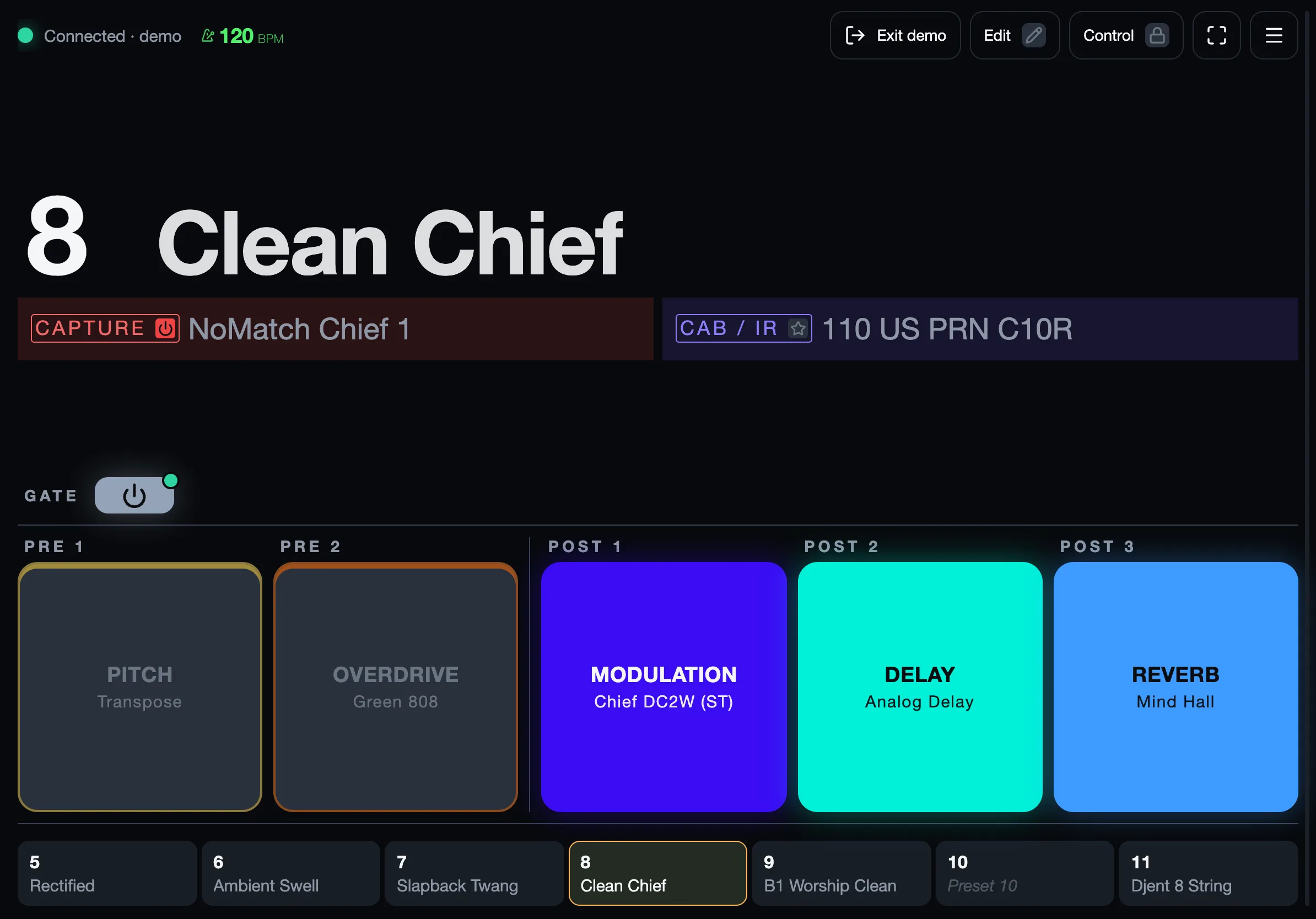
- Connection to the pedal.
- Tempo, following tap tempo live. Tap it for the tempo view.
- Edit: change sounds (below).
- Control: play from the screen (below).
- Menu: settings, presets, tempo, tuner.
- Preset number and name, sized to fit on one line.
- Capture, with its on/off state.
- Cab / IR, with its on/off state. A star means the preset’s own capture or IR.
- Gate and effect blocks, lit in their category colour when on.
- Preset strip: the presets around the active one.
Control
Section titled “Control”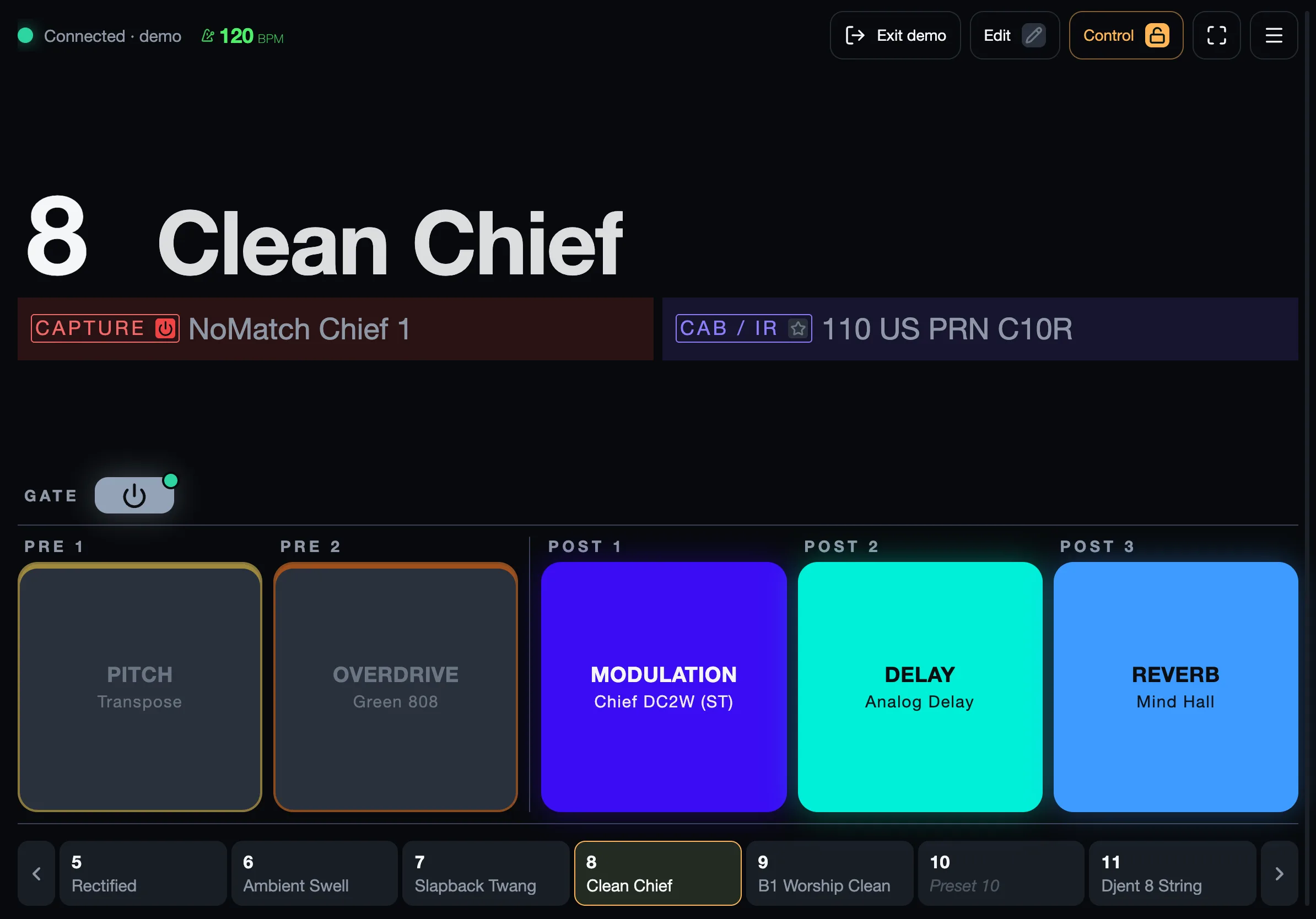
- Control on (it is off by default).
- Tap a preset to switch to it. The arrows page through all 64.
- Tap a block to turn it on or off. Tap the capture or IR to bypass it.
The screen always shows what the pedal did, checked against its own report.
Edit (left of Control) turns Control on too. Then hold a block:
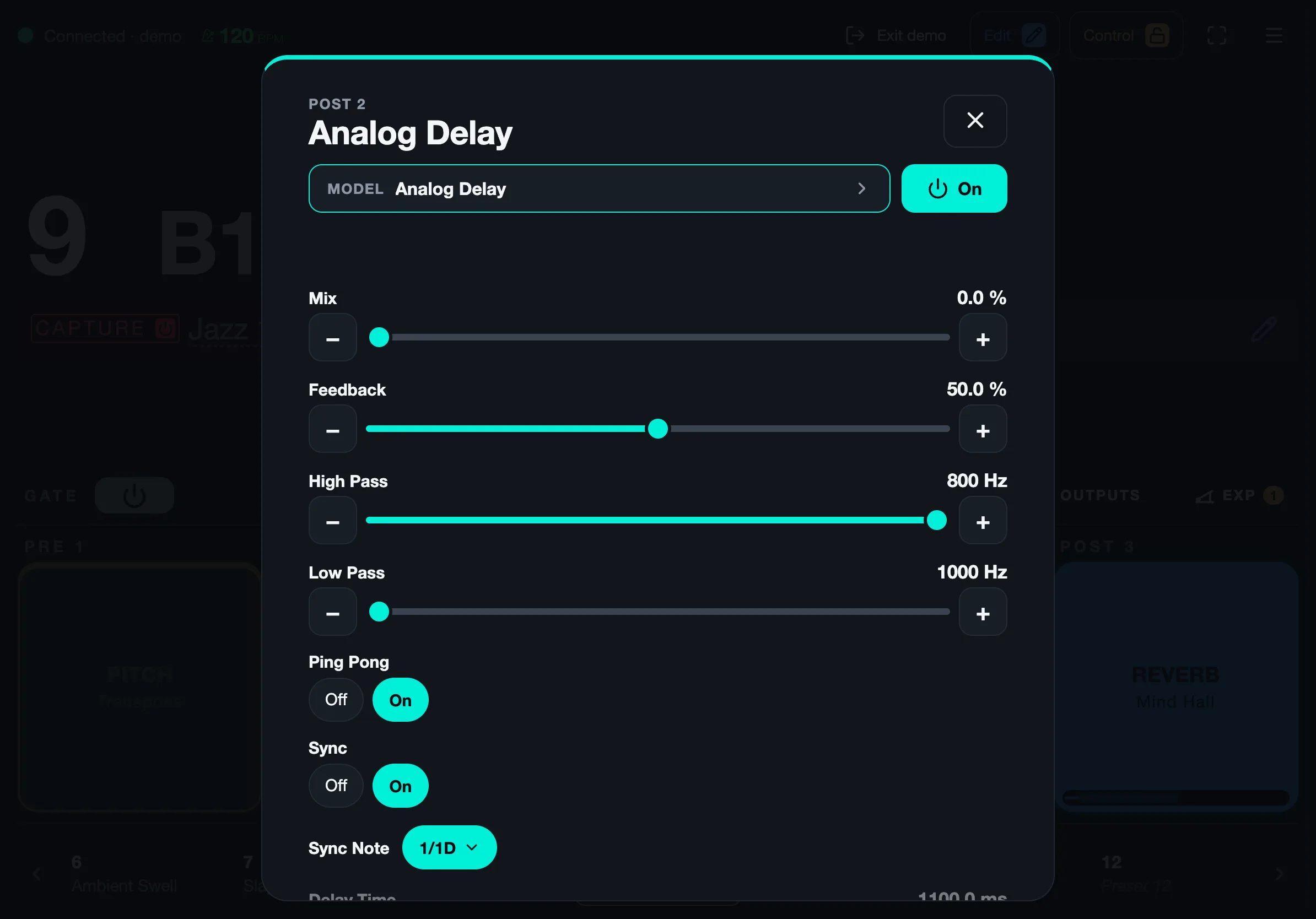
- Model: every model the slot takes.
- On / off. The sliders below change the parameters live.
| Where | Gesture | Opens |
|---|---|---|
| Effect block | hold | Model and parameters |
| Gate | hold | Threshold |
| Capture or IR name | tap | Slot, volume or IR settings, and the library |
| Preset name | tap | Rename, footswitch, delete |
When the pedal’s save light comes on, Save and Discard appear in the top bar.
Capture and IR
Section titled “Capture and IR”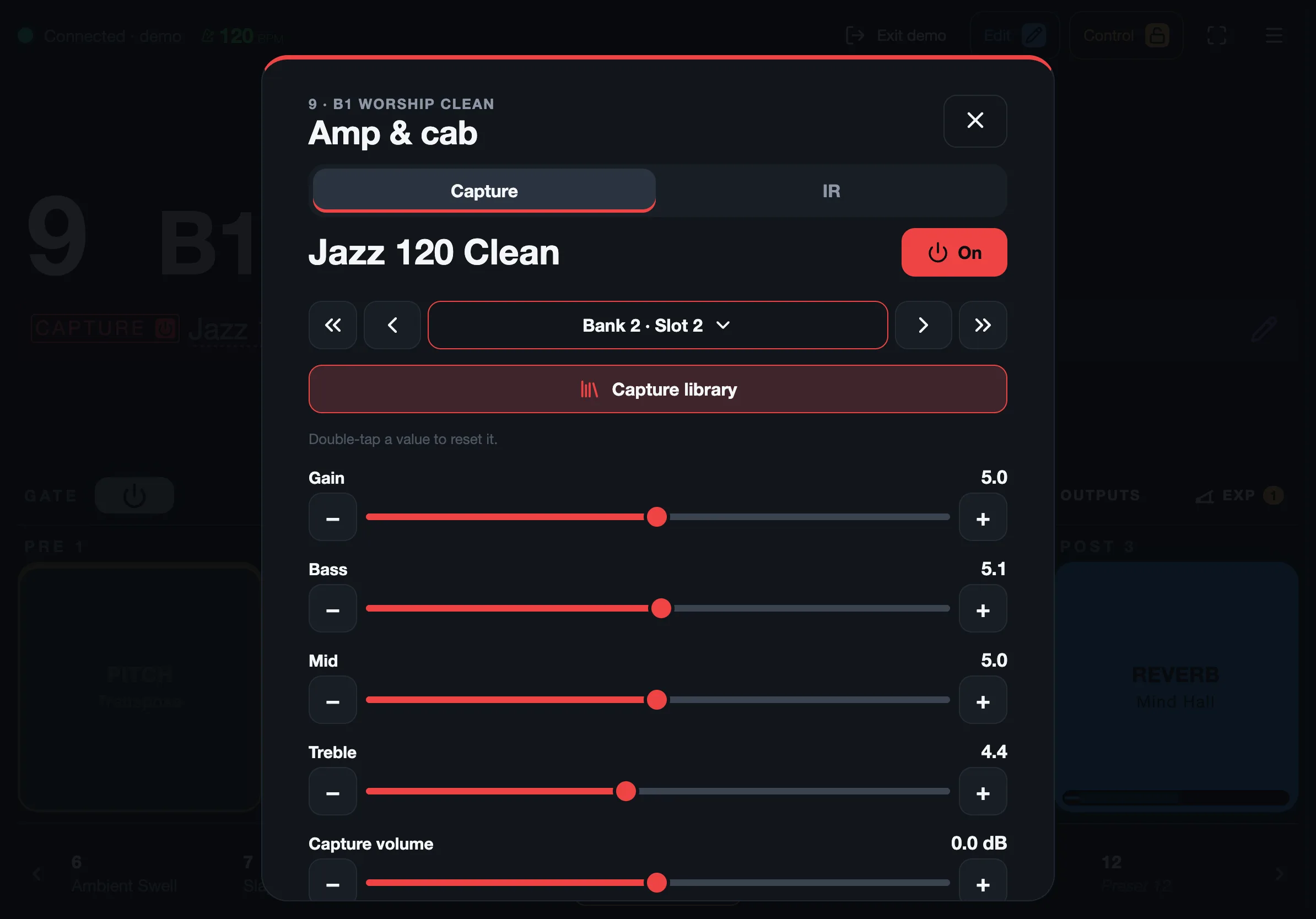
Step through the pedal’s slots, set the volume, or open the library: tap a capture to hear it, then load it. Make folders of your own; they stay in this browser.
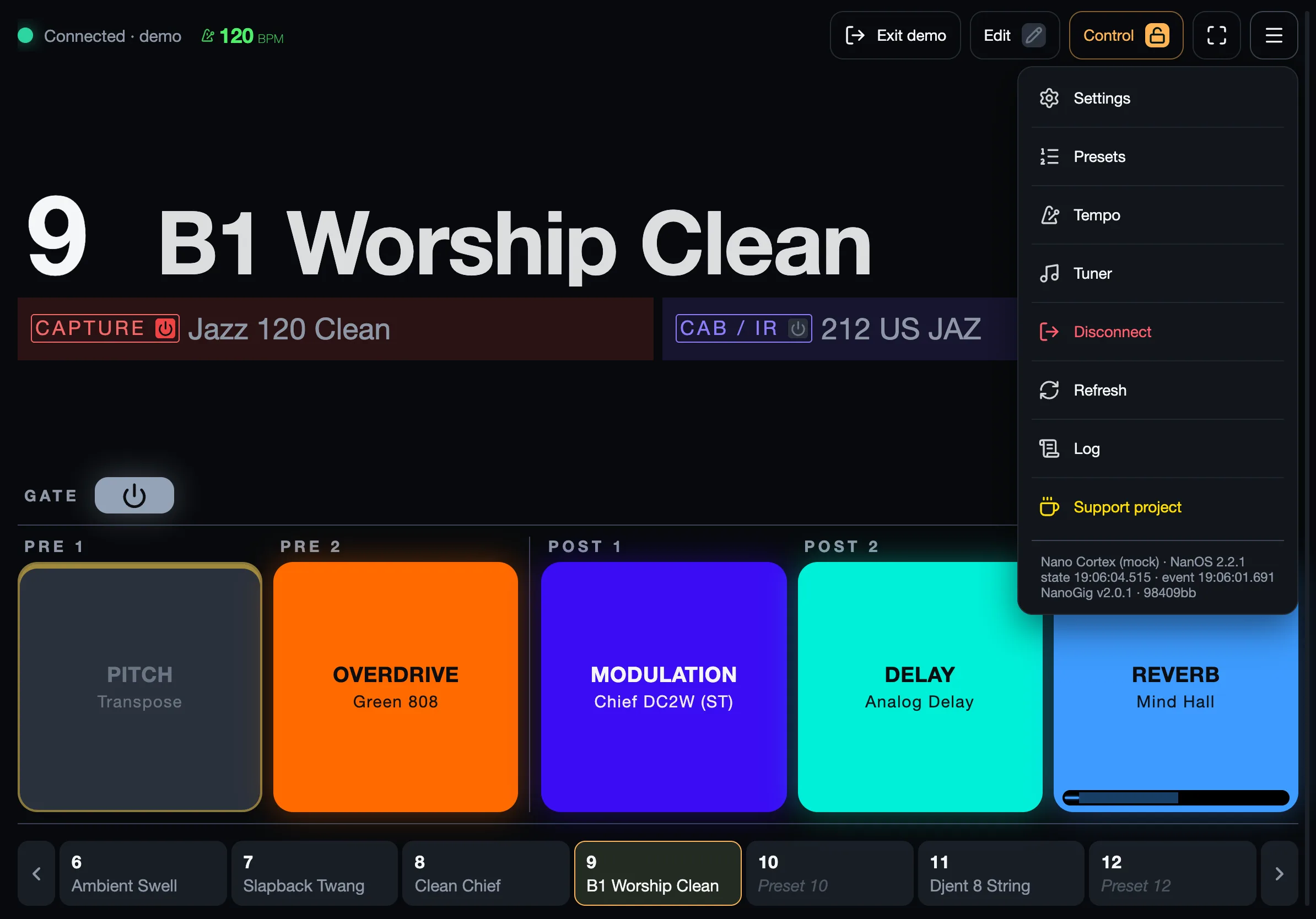
- Settings: the pedal’s own settings and NanoGig’s.
- Tempo, with − / +. Tap tempo on the pedal opens it too.
- Tuner. A tuner started on the pedal (hold footswitch II) opens it by itself.
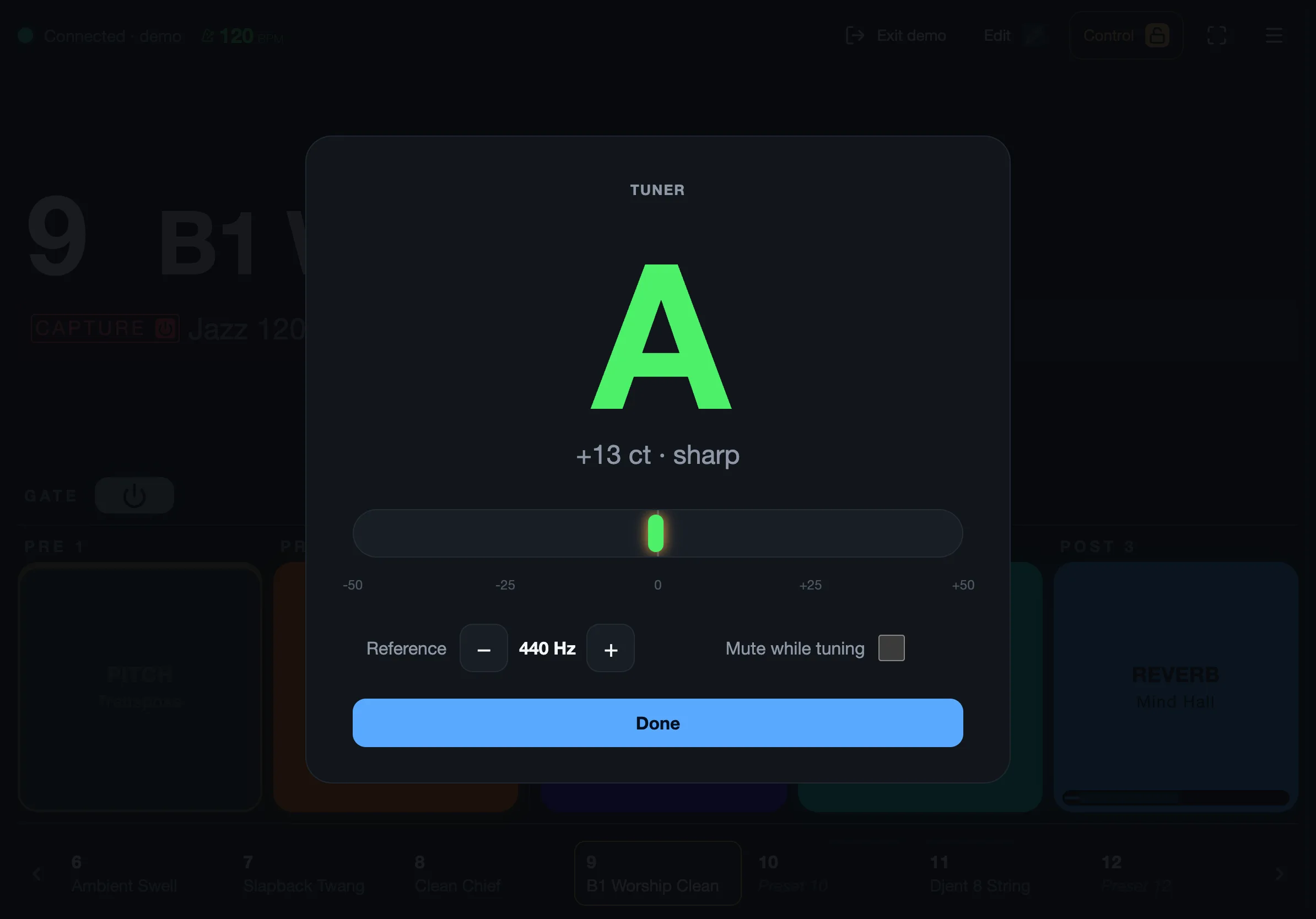
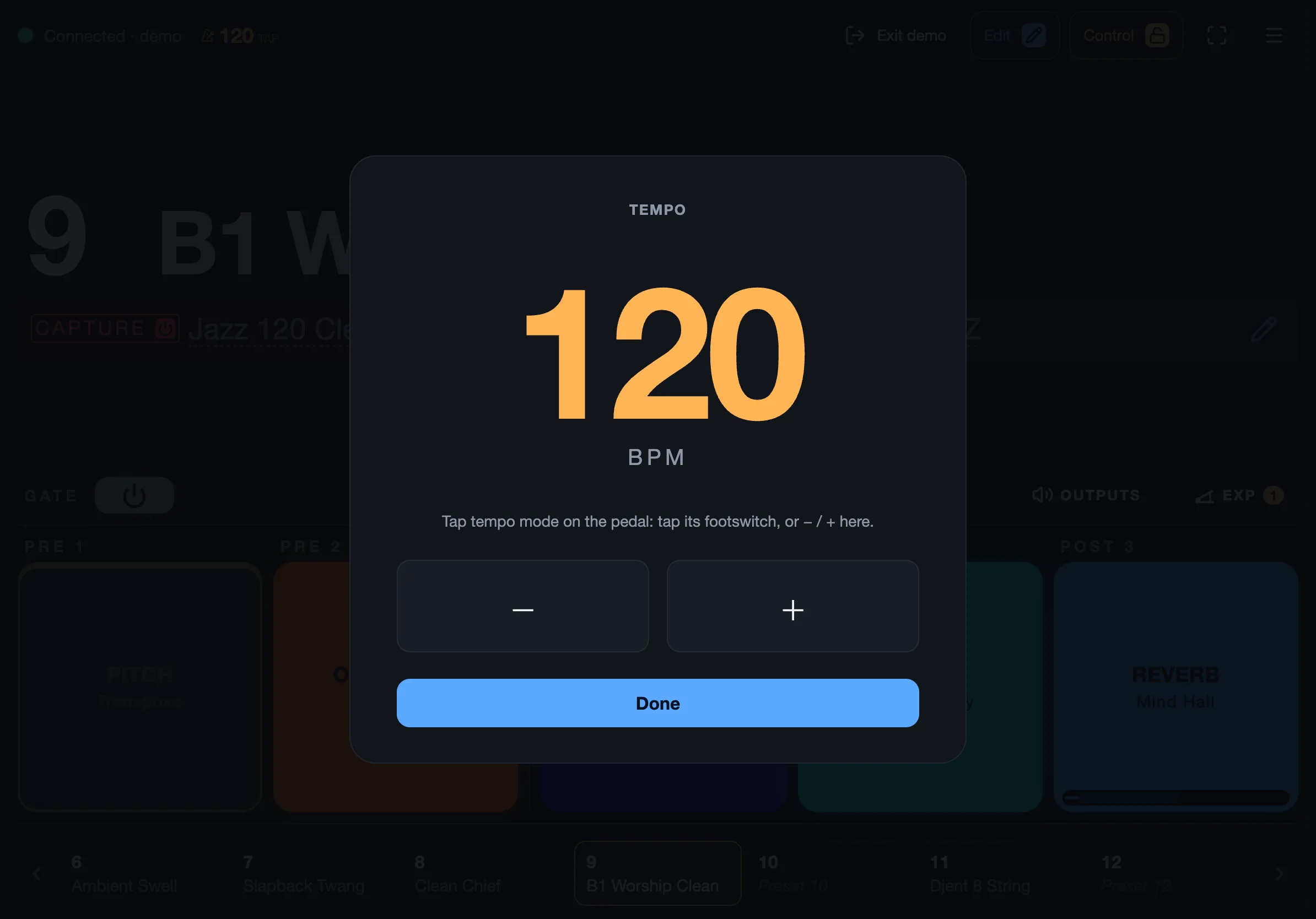
Neither needs Control: they don’t change a preset.
Settings
Section titled “Settings”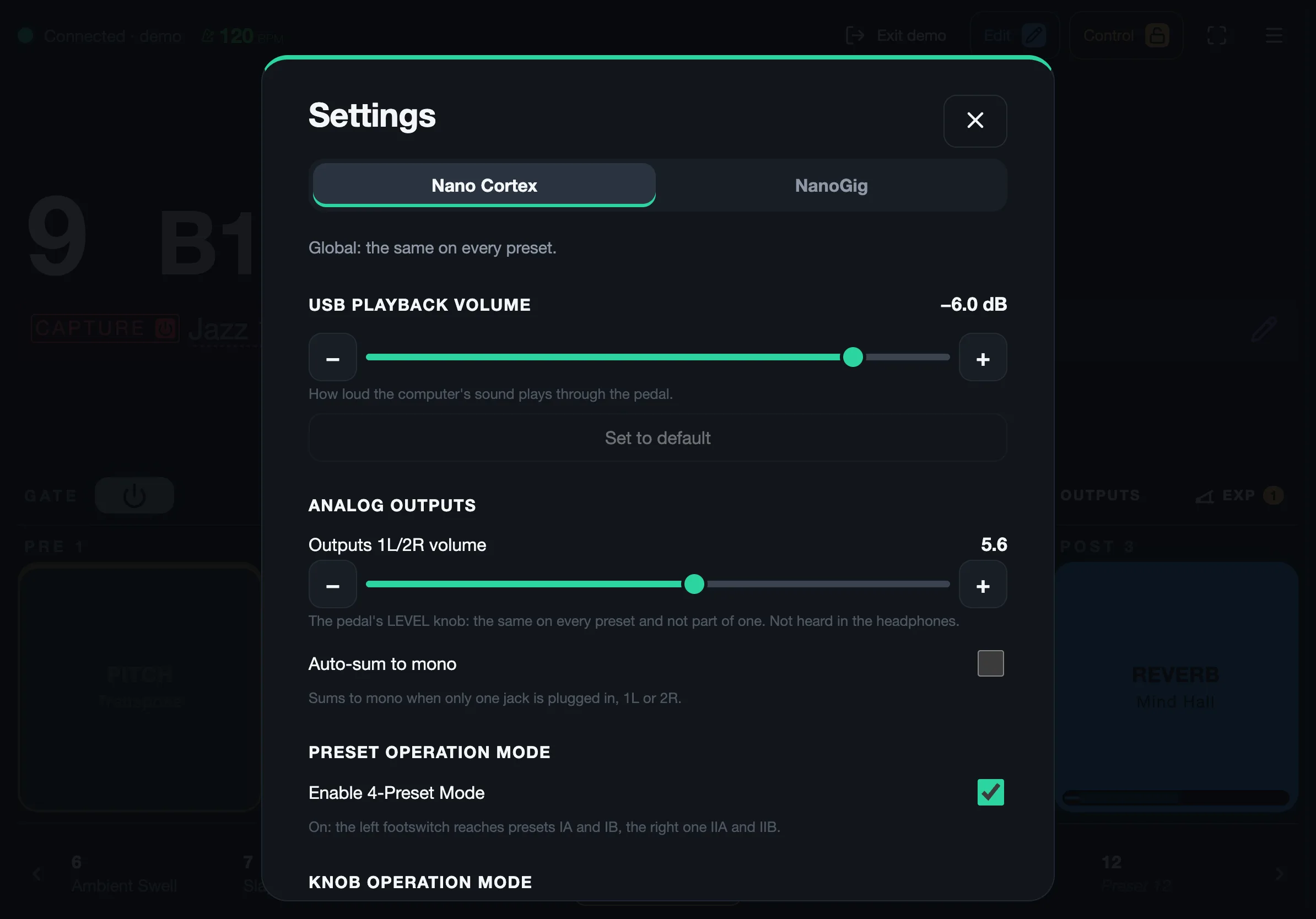
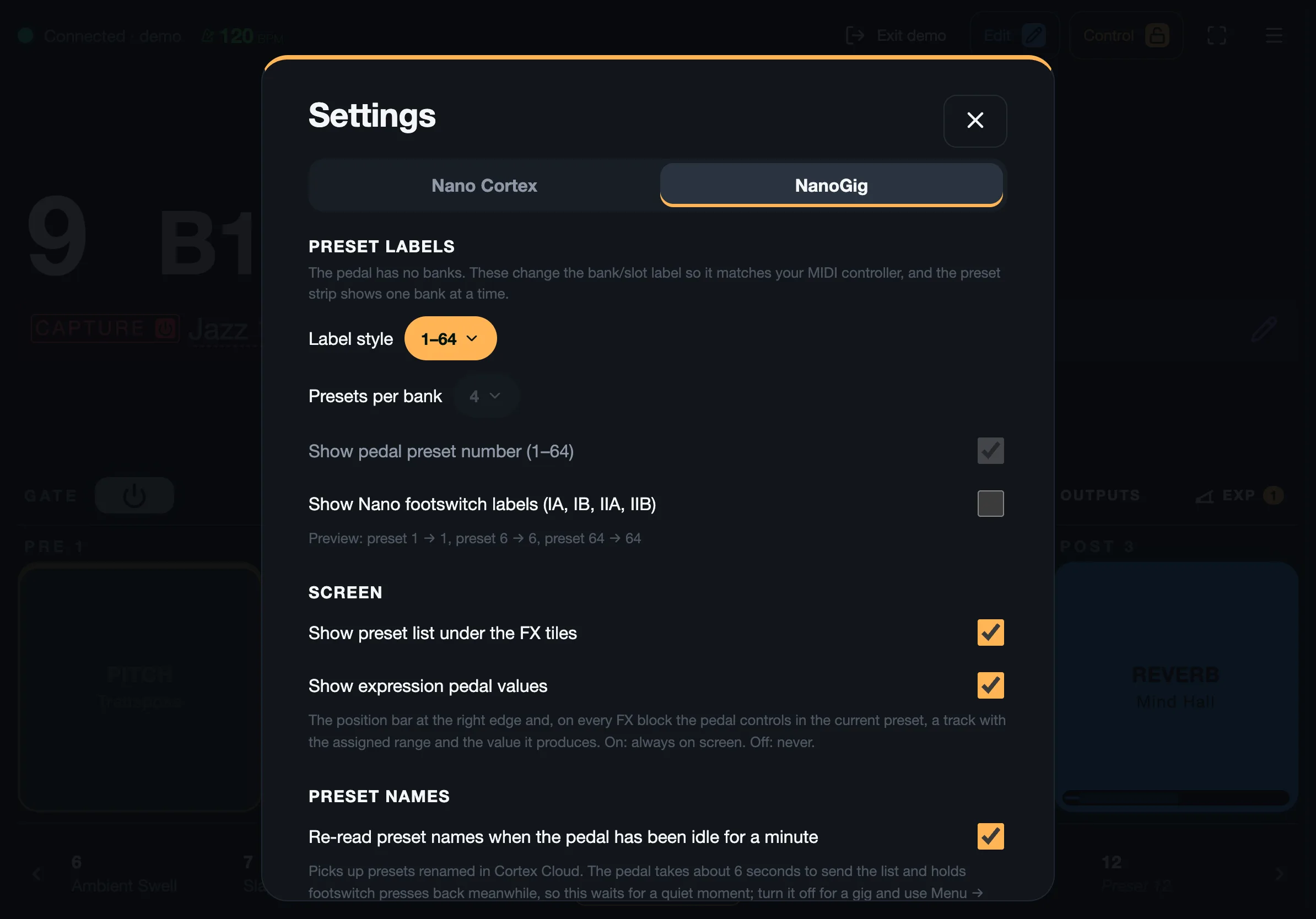
- Nano Cortex: every setting on Cortex Cloud’s settings page, written straight away. Factory reset stays in Cortex Cloud.
- NanoGig: the label style (1B or A2) and presets per bank to match your MIDI controller (4 suits an Mvave Chocolate), footswitch badges, the preset strip, expression pedal values, and re-reading names when idle.
NanoGig is not affiliated with or endorsed by Neural DSP. Nano Cortex is a trademark of Neural DSP Technologies.