Screen features
NanoGig Screen has the same gig view as the NanoGig app, laid out for a small touchscreen. The pictures are the 3.5” board; the other boards lay out the same pages for their size.
The gig view
Section titled “The gig view”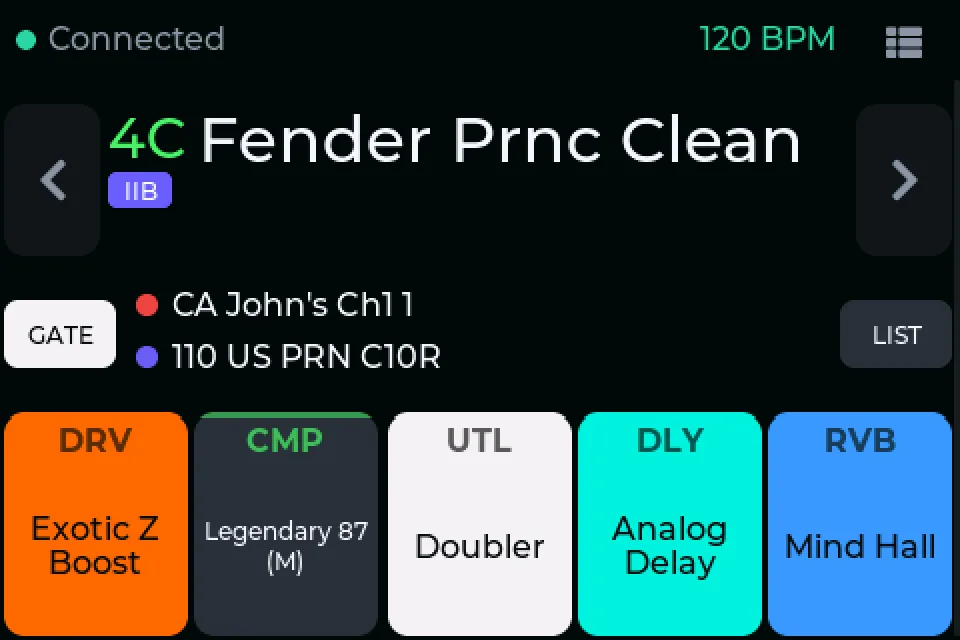
- Connection to the pedal.
- Tempo, following tap tempo live.
- Menu (below).
- Preset: bank label (
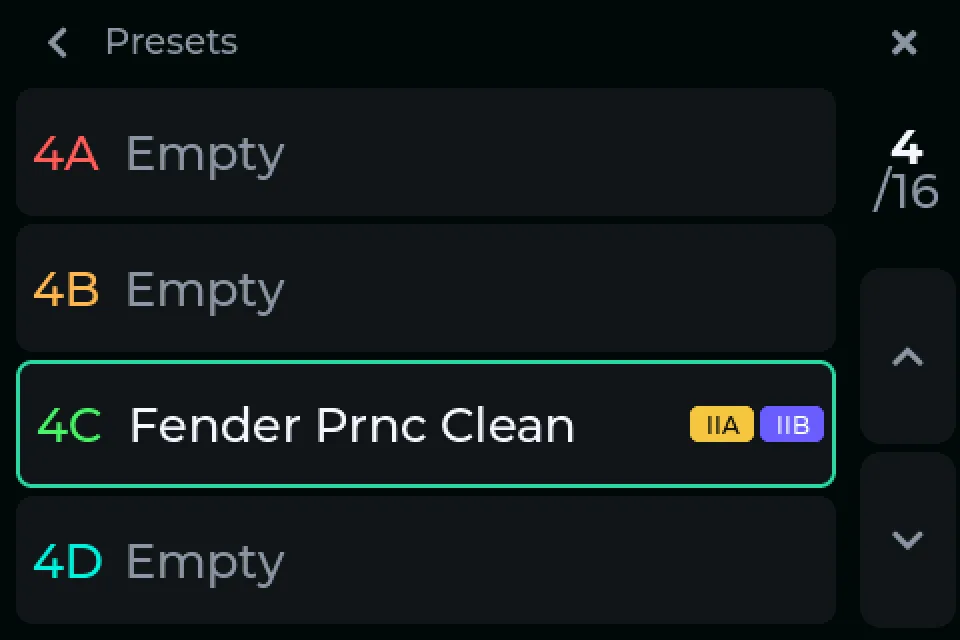
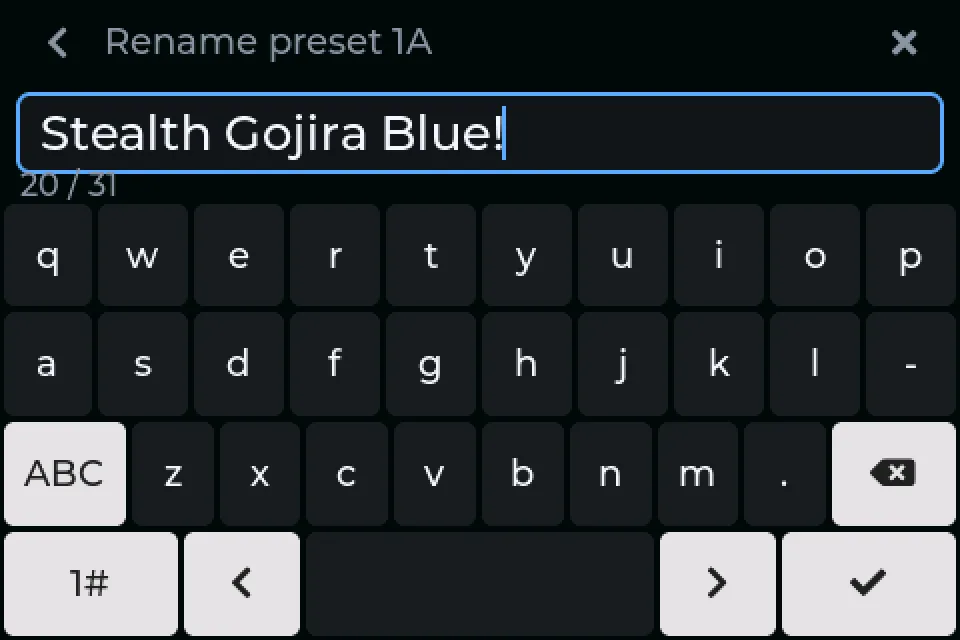
4C), name, and badges when it is on one of the pedal’s footswitches. ◀ ▶ switch presets; hold either, or tap LIST, for the presets list. Hold the name to rename. - Gate, capture and IR. Tap the gate for on/off, hold it for the threshold. Hold the capture or IR for their pages (below).
- FX blocks in Cortex Cloud’s category colours. Tap one to turn it on or off, hold it to edit.
FX editor
Section titled “FX editor”Hold an FX block.
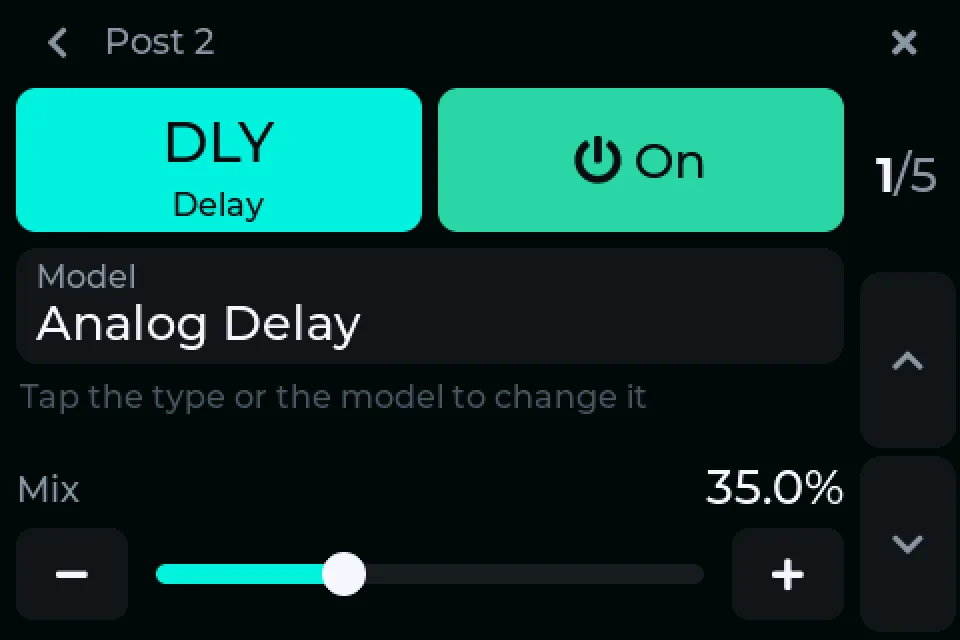
- Type. Hold for the other types the slot takes.
- On / off.
- Model. Hold for that type’s models.
- Pages of parameters, three a page.
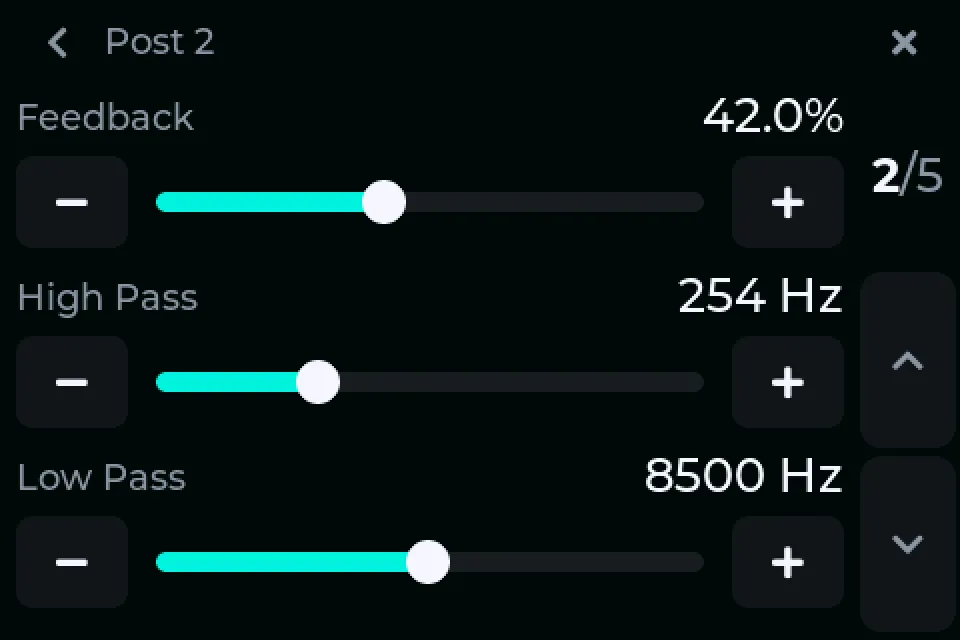
Edits are live, like a knob on the pedal. The pedal’s save button keeps them; EXIT on the pedal reverts them and the screen follows.
Capture and IR pages
Section titled “Capture and IR pages”Hold the capture or IR line.
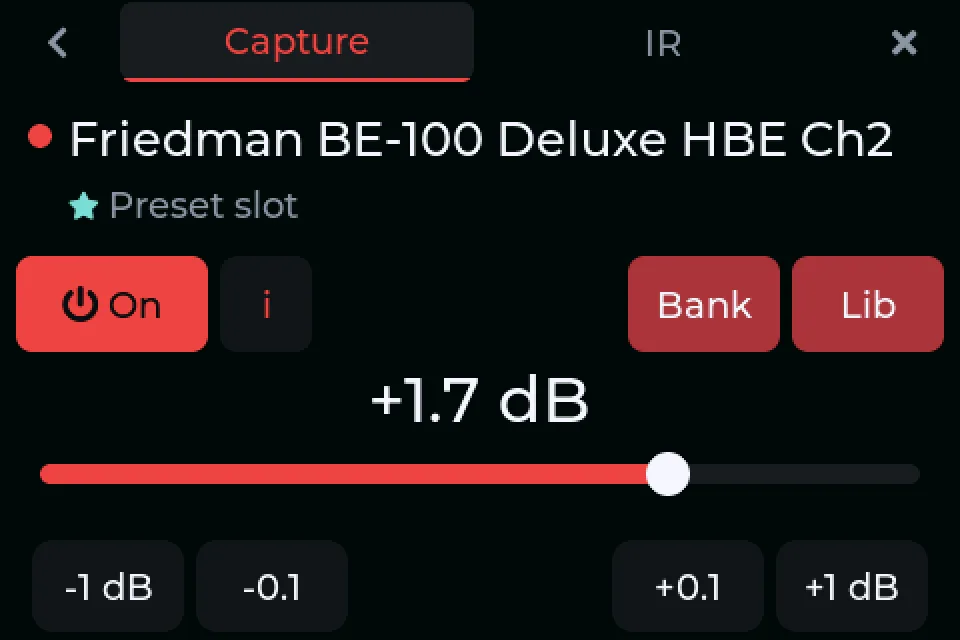
The tabs at the top switch between capture and IR.
- On / off.
- Info: type, author, gain, tags, description.
- Bank: the pedal’s capture banks (or IR slots), and the preset’s own ★.
- Lib: every capture or IR on the pedal. Tap one to hear it, then Use it. Make folders of your own; they stay on the screen.
Replacing the capture or IR in a slot writes to the pedal right away, with no undo. IR pages add phase, level, high and low pass, and the microphone for factory IRs.
Menu (≡)
Section titled “Menu (≡)”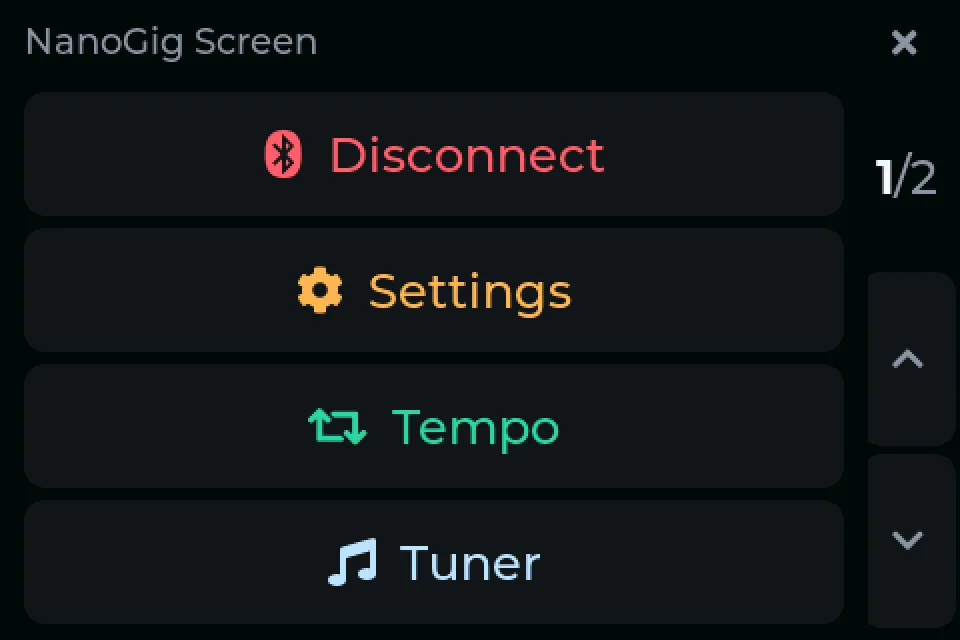
- Disconnect: hand the pedal to Cortex Cloud. Connect takes it back.
- Settings (below).
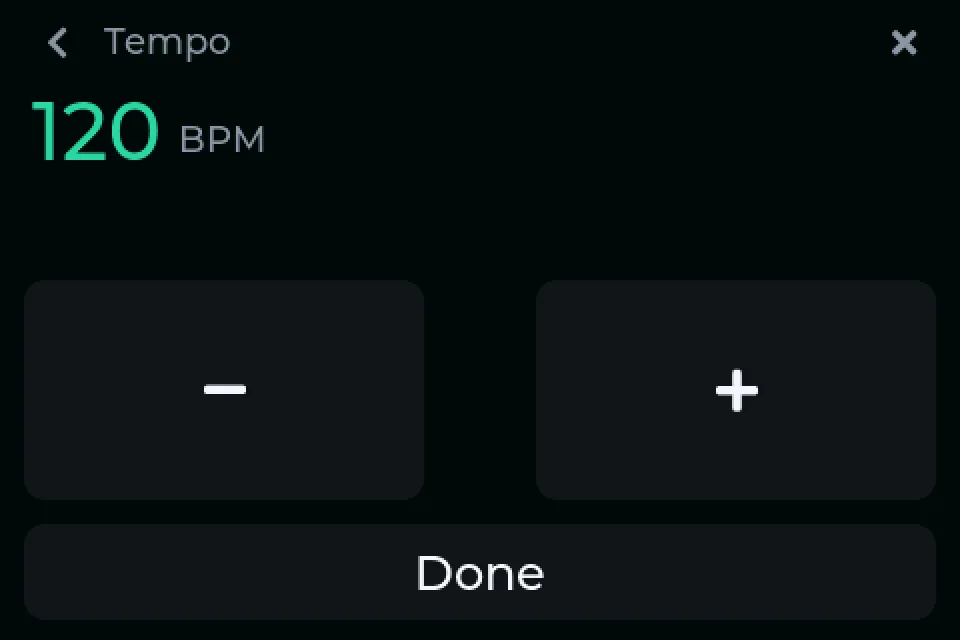
- Tempo.
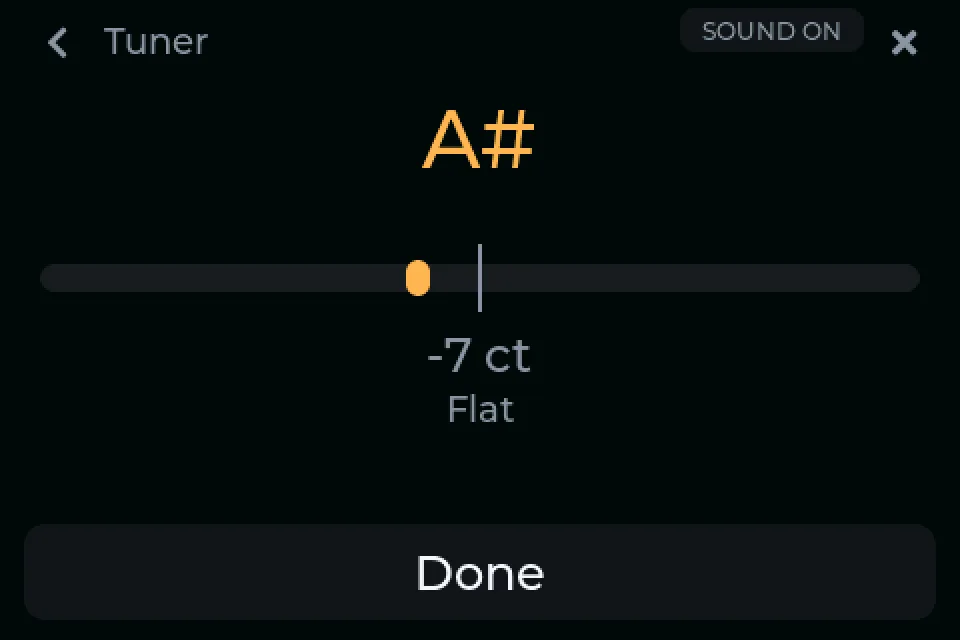
- Tuner. A tuner started on the pedal opens it too.
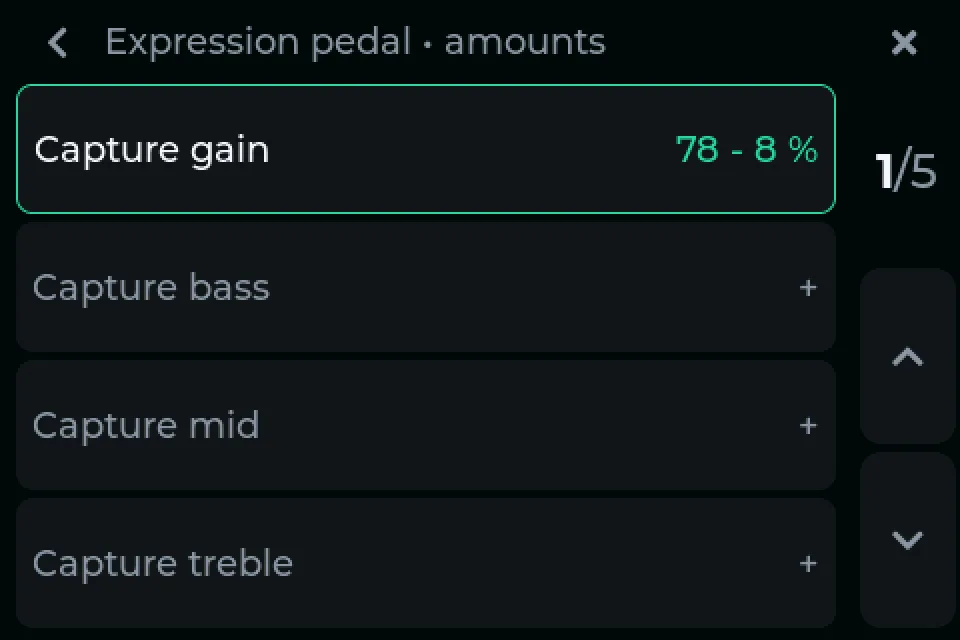
- Page 2: Expression pedal.
Settings
Section titled “Settings”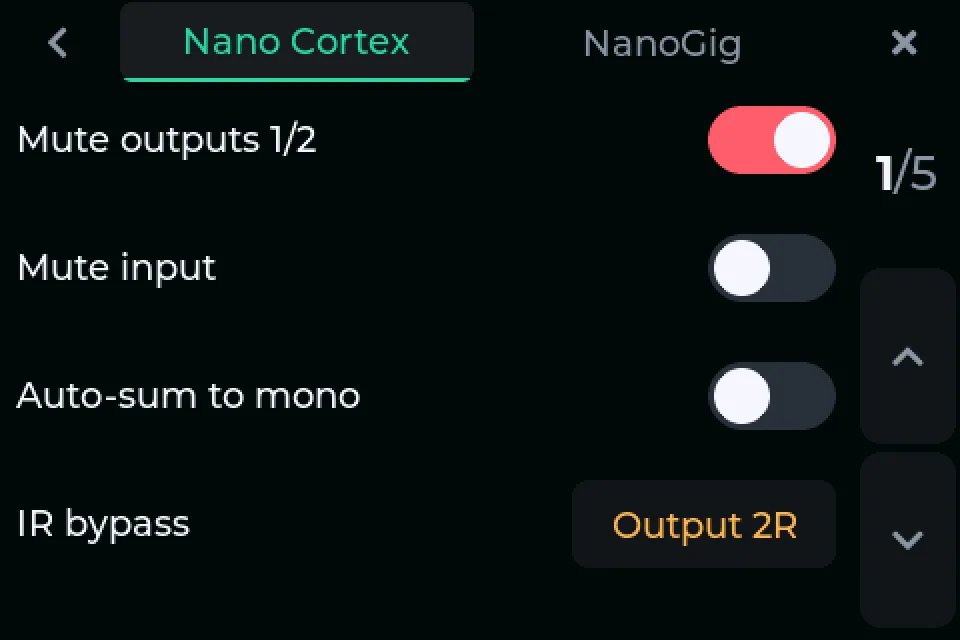
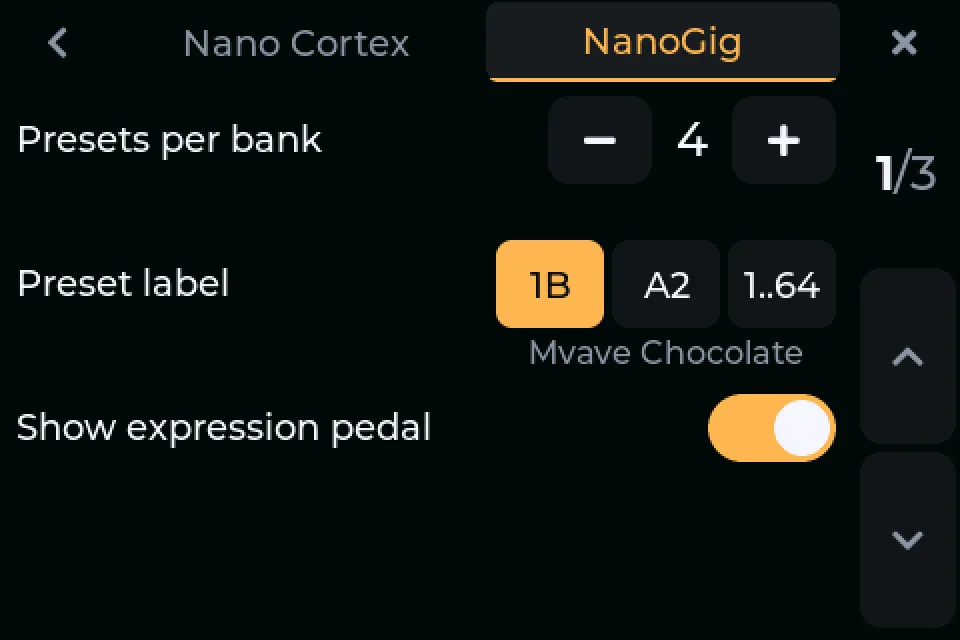
- Nano Cortex (green): every setting on Cortex Cloud’s settings page, written straight to the pedal, plus its firmware version and serial number. Factory reset stays in Cortex Cloud.
- NanoGig (orange): presets per bank and label style, expression indicators; page 2 rotation and brightness; page 3 firmware and updates.
Good to know
Section titled “Good to know”- The pedal takes one Bluetooth connection at a time. Close Cortex Cloud and the NanoGig app, or use Menu → Disconnect to hand the pedal over to them.
- NanoGig Screen is tested on pedal firmware NanOS 2.2.1. Other versions may show wrong values.
NanoGig is not affiliated with or endorsed by Neural DSP. Nano Cortex is a trademark of Neural DSP Technologies.